Showing posts with label Computer. Show all posts

Friday, February 15, 2013

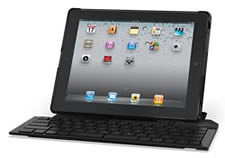
Logitech Fold-up Bluetooth Keyboard for iPad

I had an accupuncture appointment in town yesterday and stopped to check the mail.  My new keyboard for my iPad 3 was in!  Oh the excitement!  After finishing everything in town I raced home only to be very disappointed.
Oh it works but here's a list of disappointments:
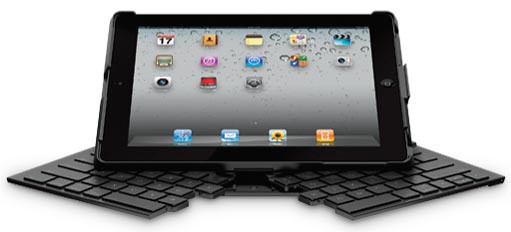
It's an extremely tight fit and you have to snap it in there pretty tight, doesn't make it easy to pull off and on.
The clear plastic cover surrounding the keys left an awful sticky mess behind, like it was heated up and had been on for a very long time.
The split space bar is really horrible!  One wants to click right where the space is so it will not work and you often end up with no space between words.  You end up having to hit the delete key to backspace a LOT.
The overall cheap plastic feeling of the keyboard, like it's not going to stand up to everyday use.
I have the Apple Smart Cover they say works great with it... um no.  You can't fold it up when you have the keyboard attached at all.  All it does is hang off the back, and you can close it but that's it.  If you want to actually use it the way it was intended you would have remove your ipad from the keyboard.
So far everytime I go to use the keyboard it needs to be reconnected in my settings, for some reason the bluetooth won't stay connected.
The bulk of the keyboard is bad.  If you think this thing will only add a few millimetres you would be totally wrong, it's thick!

Oh I will probably get used to using it, it will take awhile though.  I do like that it is larger than some of the keyboards I looked at, I mean what's the point in getting an external keyboard if you still have to use two fingers to work it?  I do like that it is charged via usb and supposedly the charge will last about six months.  Another reason for liking it is if you have crappy eyes due to aging but your fingers know where the keys are you can sit in your dark kitchen, early morning, and type up a blog post.  Just be prepared to hit the delete key often because of the spacebar issue.

Thursday, January 29, 2009

Free Desktop Wallpaper

I was playing around with my camera and snapped a photo of a crystal that hangs above my deck. I resized it and it looks pretty cool as my desktop wallpaper. If you'd like a copy in large format for your own desktop click here.
My Mom was telling me that she couldn't see the tiny egg in yesterday's post. Her resolution is lower on her computer than mine and the right side of the pictures on my blog posts were cut off. Is anyone else having this problem? I resized the egg pictures but was wondering how many can see the full Ford symbol on Pop's truck grill in this post? She couldn't see it at all. I'm not sure of the "standard" resolution that people use, but I gather I have mine quite small, no wonder I think I need glasses! LOL I checked some stats and it seems most people are at 1280x1024, I then checked mine and it's at 1680x1050, quite a difference! I think I'll resize my pics to 640x480 and see if it makes a difference.

Monday, June 9, 2008

Make your WD Passport work with any USB DVD Player

When I first bought my Western Digital Passport drive I had all intentions of putting hundreds of movies on it and plugging it into my USB enabled DVD player that's hooked up to my TV. Unfortunately it didn't work :( The drive draws power through the USB cable, and the LG DVD player I have, doesn't supply enough. I thought that if I bought an external case with it's own power adapter, took the drive out of the Passport and put it in there, it might work. Nope didn't work either, it was still drawing power from the DVD player. Last night my brother said "All you need to do is find the pin in the USB cable that has power and disconnect it." Eureka!

As always you do this at your own risk and I will not be responsible for any damages to your drive, dvd player, or computer. Everything worked fine for me though.

If you'd rather see this at YouTube click here.

You'll need: A Western Digital USB Passport drive (or a drive that does not have it own power supply or does not work with your DVD player because of the power issue.)


A USB cable that plugs into the drive.


A 5v power adapter. The end won't matter because you'll be cutting it off but you have to be sure it's only 5v!! In the pictures I'm using one from an old D-Link USB hub. I ended up making two cords, the first one I used was a charger I had for an old LG cell phone, it had coloured wires inside, the USB hub did not.


The pins in the USB cable are:


Start out by cutting into the USB cable near the MINI end. Be careful not to cut any of the wires!! You'll see four wires inside (RED, BLACK, GREEN, WHITE) wrapped in aluminum foil and silver wires.


Carefully pry out the RED and BLACK wires and cut them. Strip the RED and BLACK wires coming from the MINI end.


Cut the plug off the 5v power adapter. There should be one RED and one BLACK wire, your's could be different. RED is power, BLACK is ground. I made a second cord and the wires were NOT coloured. I don't know if it makes a difference but I hooked them up and the Passport works fine. You might want to use a tester for this.


IMPORTANT: You will be connecting the wires together but only the wires coming from the MINI end of the USB cable. Connect the RED from the power adapter to the RED in the USB cable. Connect the BLACK from the power adapter to the BLACK in the USB cable. Remember it's the wires from the MINI end you will be connecting. You might not have coloured wires in your adapter such as I found out when I made a second cord. In this picture I did not. I don't think it matters which wires you hook up but I'm no expert when it comes to electrical stuff so you might want to test the wires.


Bend back the RED and BLACK wires that are going to the large end of the USB cable that you did NOT strip and make sure they don't touch any other wires, including the aluminum foil or silver wires!! Use small pieces of black tape to keep them by themselves. Use electrical tape and tape the whole works together ensuring no wires are touching anything else.

All taped up and ready to use.


The Passport drive must be in FAT32 format for the DVD player to see it and have a bunch of movies on it. You should now be able to run your Passport in your USB enabled DVD player :)

What you've done is cut the power that runs from the DVD player through the USB cable to the drive. You are now using power from a 5v power adapter you have plugged in. I would think that this would also work if you don't have enough power in your computer to run a Passport. I searched all over the net for a solution to this, or even a cable to buy, but found nothing. WD does sell a "Y" cable but this wouldn't work for me. It has two USB ends to draw more power to run the drive... my DVD player doesn't have two USB connections and I'm sure most don't. I've tested this in an LG DVD player and a Pioneer DVD player and both work great.

************************
Thanks! June 10th, YouTube video featured on: GetUSB.info

Tuesday, March 4, 2008

Upgrade Your Laptop, with a bonus

My daughter Dallas recently bought a laptop that came with dual SATA hard drives; a 120 GB and an 80 GB. Shortly after buying her laptop, she realized that she didn't have near the space she needed, so she purchased a 250 GB Western Digital Portable USB Passport. While surfing around Youtube I discovered you can take apart the USB Passport, remove a small board, and it becomes a SATA drive... follow the instructions to see what I did.


These are great little drives. You simply plug them in USB with the supplied cable and it's instantly recognized. Power is supplied via the USB so no separate cable is needed.


Long story short, I took apart the Passport, popped it into her new laptop replacing the small 80 GB secondary drive. She went from 200 GB to 370 GB of space, an increase of a whopping 170 GB!

What did I do with the 80 GB hard drive I removed from her laptop, you ask? I put it into the Passport so she still has a small portable USB drive. Why would a person do this? It's better to have a large amount of space available in the laptop than to pack around an external drive, and USB transfer rates are much slower than SATA. The nice thing is nothing is wasted, most people would toss the smaller drive into a drawer and forget about it. A big benefit is the cost of a 250 GB hard drive is pretty close, and sometimes a bit more, than the Passport, and it doesn't come with the USB/SATA converter board.


It's fairly simple and I've posted instructions.

BEFORE you do this make sure there are no operating system files on the drive you are replacing!!
If there are files, you can clone the drive BEFORE making the switch.


There's no screws but you'll need a screwdriver to pop apart the Passport. Run the screwdriver around the edge of the Passport "popping" the plastic clips that hold it together.


Inside you'll find the SATA drive.


There is foil wrapped around one end and also four rubber pads in each corner. Save the tinfoil and pads to put on the drive you will take out of the laptop.


Under the tinfoil you'll see a small board that converts the SATA to USB.


The board pulls straight out. The drive is now a regular SATA drive ready for the laptop.


Insert the larger drive into the laptop. Dallas' had a small case attached to the drive inside that I had to take off and put on the Passport drive, four small screws so that was pretty easy.
The Passport comes default as FAT32, you'll probably want to format it as NTFS. Please make sure you have transferred any files off the drive before formatting!!


Dallas went from this:


To this:


Remember to take the hard drive you removed from the laptop and:
Insert the SATA/USB board into the old drive, place the tinfoil on, and then the four small rubber pads.

Put the drive into the Passport case and snap together. You now have a small portable USB hard drive (much better than throwing it in a drawer).

Western Digital is now selling a larger 320 GB Passport for even more extra space, but even if you didn't have dual drives you could upgrade your single drive and still have a portable USB drive using your old hard drive.

My only question: Who was the person that was sitting around and thought to take apart the Passport in the first place?

Update: Use your old hard drive hooked up to your USB DVD player and watch movies on your TV! If it doesn't work when you plug it in check out my tutorial to easily make a cord so it will.

Wednesday, February 20, 2008

Computer Mama

Have you ever wished you could be in two places at the same time? If you're a Mama I bet you've wished that more than once! Tonight I was... well sort of... thanks to technology and quick thinking.

Let's face it, we all want to be "perfect" mothers, and spend our leisurely hours sitting at the kitchen table tutoring our kids until they are geniuses... unfortunately life sometimes gets in the way... read on!

Last Saturday Hubby flew out to a camp job quite a distance away. He's up in the Queen Charlotte's and will be gone sometime between 2 to 4 months. I'm feeling a bit stressed because not only do I have all my jobs to do, but his as well. Although things will eventually fall into a routine, tonight was a bit hectic. Take water out and lock up the chickens, fill the wheelbarrow with wood and load the stove, get supper done, then the dishes, etc., etc., etc., ... all about the same time Sydney is asking me to please read out her spelling words. Arrrrrgh! In the time it would take me to read her spelling list I could have a bunch of this stuff done, and not only that but she will ask me again tomorrow night, and then the next, and then the next after that. What's a Mama to do? I grab my headset, bring up "sound recorder" on the laptop, hit record, and quickly read out her spelling words. I teach her to hit pause using the space bar, write out the word, and then hit the space bar again to resume. Wala, I'm in two places at the same time. She can simply click on the file and play it anytime this week... Ain't technology grand? :)

Thursday, January 24, 2008

Western Digital My Book Studio Edition

WARNING: Technical Post

If you own this external harddrive or any external harddrive and you do not want it to go into standby/sleep mode continue reading. If you don't own an external harddrive then skip this post. The reason I'm posting these instructions to my blog is because there's not much on the web for this type of problem, or this drive, and we all know how frustrating that can be. Use this fix at your own risk!! I have this script running on Windows Vista. The Western Digital My Book Studio Edition is sold as a MAC drive but you can format it and install it on any windows PC.

First off, if you don't already own this particular drive I would suggest NOT buying it. If you do already own it then you probably know that it has a bug so that when it spins down it simply will not wake up, making it fairly useless for backup jobs, or anytime you want to access it quickly. I have to hold the power button for about four seconds to shut it down, wait a few seconds, and then turn it back on again. Windows goes through the "auto play" feature and I'm able to see it again. Pain in the butt! I only have to do this if it's gone into a deep sleep, if it's only a semi sleep then it will still be recognized but it takes quite a few seconds before you can access it and sometimes it will just hang and you are then forced to do the power off/on thing.

I've checked many forums and it doesn't seem to matter if you are running this drive with a MAC or Windows PC. It also doesn't matter if you have it hooked up eSata, Firewire, or USB. It's obvious Western Digital needs to send out a firmware update but they are not saying/doing anything (even though they are well aware of the problem).

Below I have shown you how to create a script to keep the drive awake or you can simply download the script from here. After downloading and saving it, you must place it on the drive you want to keep awake, you then create a shortcut to the script and place the shortcut in your windows startup folder so the script will run automatically when you start your computer. If you don't restart right away, remember to double click the script to run it!

If you want to create the script yourself continue reading below. This probably isn't the best fix but it certainly helps, hopefully Western Digital will get their butts in gear and get a firmware update out there!


How to Create the Script:
Create a folder on the drive that you want to keep awake. In my case this is Drive G, yours may be different. I have my drive partitioned into three but only need the script on one partition. Name this folder whatever you like.
Inside the folder create a new text document and name it: script You will have to have your extensions showing so you should have a text document named: script.txt when you're done.
Open script.txt and copy and paste the words below into the text document. Anything between ***** doesn't matter but it's good to keep it with the script so you know what it is.


'***********************************************************
' The purpose of this script is to keep external hard
' drives awake which would otherwise turn off after their
' 5 minute timers detect no disk activity.
' To use, simply place this script on the hard disk
' you want to keep awake, e.g. in a sub folder.
' Double-Click to run the script, there is no GUI.
' A file will appear that has the same name as the script
' with the extension "-timestamp.txt" appended.
' This script writes to this text file every 4 minutes
' Simply create a shortcut to this script in your
' startup folder so that it runs everytime your PC boots.
' Advanced technically minded users have proven good
' results can be achieved with SrvAny.exe and InstSrv.exe
' from the Microsoft Resource Kit, to create this as
' a service.
' This script is in the Public Domain 2006
'***********************************************************
Const ForWriting = 2
Dim fso, f
Set fso = CreateObject("Scripting.FileSystemObject")
Function WriteToFile
Set f = fso.OpenTextFile( Wscript.ScriptFullName & "-timestamp.txt", ForWriting, True)
f.Write Now
f.Close
End Function
Do
WriteToFile
Wscript.Sleep (240000)
Loop


Save the text document and then close it. Right click the document and change the last three extension letters from .txt to .vbs It should now be: script.vbs Double click the script and you should see another file show up in the same folder with the name script.vbs-timestamp.txt If you see that file then you know the script is working.
IMPORTANT: Create a shortcut to the script and place the shortcut in your windows startup folder so the script will run automatically when you start your computer. That's it you're done! You now have a very small script running and this should keep the sleepy harddrive awake.
Update: Do you have a Western Digital Passport drive? Check out my tutorial for what you can do with it!